
VariantValidator Batch Validator
The VariantValidator Batch Validator allows multiple variant descriptions to be validated in a single submission through the VariantValidator web interface. It is designed for validating lists of variants generated from research, diagnostic, and clinical workflows.
If you only need to validate a single variant interactively, use the Validator instead.
The Batch Validator accepts all VariantValidator supported input formats and processes submissions asynchronously. Results are returned by email once validation has completed.
See also
- Validator — Validate a single variant interactively.
- Gene2Transcripts — Identify suitable transcript reference sequences for a gene.
- Supported Input Formats — Complete list of accepted variant description formats.
- Transcript Selection — Guidance on selecting transcripts for validation.
Opening the Batch Validator
The Validator can be accessed from the VVweb home page by:
- selecting Try it out on the Batch Validator card;
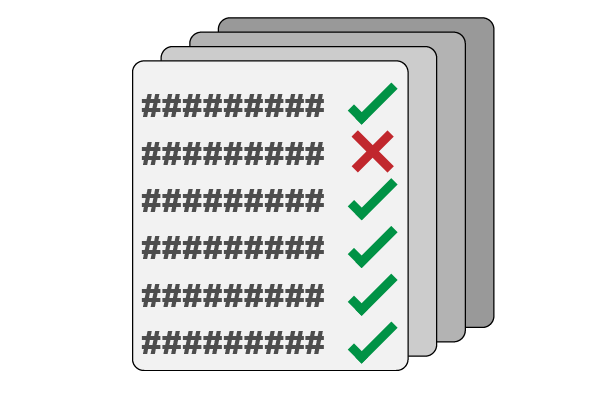
or - selecting Tools → Batch Validator from the navigation bar.
Using the Batch Validator
Submitting variants using the Batch Validator consists of five simple steps:
- Enter your variant descriptions into the Input Variant Descriptions box.
- Optionally restrict validation to one or more genes using HGNC gene symbols.
- Enter a valid email address.
- Select the appropriate genome build.
- Submit the job.
Validation results are processed in the order that jobs are received and are returned by email when complete.
Preparing variant descriptions
The Batch Validator accepts all VariantValidator supported input formats. For a complete description of accepted formats, see Supported Input Formats.
For clarity, the web Batch Validator requires one variant description per line. Multiple variants must not be entered on the same line.
If your variants are specified using gene symbols rather than transcript reference sequences, or you wish to restrict validation to particular transcripts, see Transcript Selection.
When preparing variant lists, we recommend:
- Using a plain text editor whenever possible.
- Avoiding copying directly from formatted documents or web pages, which may introduce invisible characters.
- Ensuring that each variant description occupies a separate line.
A valid input file might contain:
NM_000088.4:c.589G>T
NC_000017.10:g.48275363C>A
NG_007400.1:g.8638G>T
LRG_1:g.8638G>T
LRG_1t1:c.589G>T
17-50198002-C-A
chr17:50198002C>A
These variant descriptions are valid and should not generate validation errors.
The following examples contain errors and are expected to produce validation messages:
NM_000088.4:c.589C>T
NC_000071.10:g.48275363C>A
NG_007400.2:g.8638G>T
LRG_1:g.8638G>N
LRG_1t3:c.589G>T
17-50198002-G-A
chr17:550198002C>A
COL5A1:c.5071A>T
NM_000088.3:c.589GG>CT
NM_000500.7:c.-107-19C>T
Example input files are available below:
Customising the output
The Batch Validator allows you to customise the information included in the results file.
By default, all available output fields are returned. However, you may use the available checkboxes to include or exclude specific information depending on your workflow.
Customising the output can simplify downstream analysis by limiting the results to the information that is relevant to your application.
For a description of the available output fields, see Output Formats.
Submitting a job
When you submit a batch validation job, an on-screen confirmation message is displayed immediately. This confirmation includes a unique Job ID, for example:
17e4fa8b-e4c3-4d1f-bfab-79c6366357e1
A confirmation email is also sent to the email address provided during submission. This email contains:
- the Request ID;
- the date and time the job was submitted; and
- confirmation that the request has entered the processing queue.
The time required to complete a job depends on:
- the number of variant descriptions submitted;
- the number of jobs currently waiting in the queue; and
- server workload.
When processing has completed, a second email is sent containing a secure link to download the results.
For security and storage reasons, results remain available for seven days after completion and are then permanently removed from the server.
Understanding the results
Results are returned as a plain text, tab-delimited file.
Although the file is human-readable, it is intended to be opened in spreadsheet software such as Microsoft Excel or LibreOffice Calc. During import, the default tab-delimited settings are normally sufficient.
After opening the file, you may wish to adjust the column widths to improve readability.
Validation messages are reported in the Warnings column and may include:
- errors that prevent successful validation;
- warnings that provide additional guidance; or
- informational messages describing automatic corrections or other actions performed by VariantValidator.
If validation errors are reported, correct the affected variant descriptions and submit only those variants requiring re-validation.
For a complete description of validation messages, including recommended actions for each message, see Errors and Error Codes.
Example output files corresponding to the example input datasets can be downloaded below:
Metadata
The Batch Validator automatically adds metadata to the second line of the output file. This metadata records information about the validation environment and includes details such as:
- the VariantValidator software version;
- database and reference data versions; and
- the output options selected for the validation job.
We recommend retaining this metadata when sharing or archiving validation results, as it can help reproduce analyses and assist with troubleshooting if support is required.
Using the Batch Validator for journal submissions
Many biomedical journals now recommend or require variant descriptions to be validated before manuscript submission. VariantValidator is recognised by a number of journals as a suitable validation tool for this purpose.
When submitting to a journal that requires variant validation, include the Batch Validator output file alongside your manuscript if requested by the journal's submission guidelines.
Important
Any errors identified by VariantValidator, including variant descriptions that have been automatically corrected, should be reviewed and corrected in the manuscript before submission. VariantValidator reports validation issues but does not modify manuscript content.
Some journals may specify which output fields should be included in the submitted results. If you are unsure, we recommend leaving all output fields enabled when generating the results file.
For intronic variants, manuscripts should include either:
- a genomic sequence variant description; or
- a RefSeqGene sequence variant description, where an appropriate RefSeqGene record exists.
Following these recommendations helps ensure that published variant descriptions are unambiguous, reproducible, and compliant with HGVS nomenclature.
Getting help
VariantValidator has been developed to support a wide range of users, from those new to HGVS nomenclature to experienced clinical scientists and bioinformaticians. If you encounter difficulties preparing variant descriptions or interpreting validation results, we encourage you to seek assistance.
Before contacting the development team, you may find the following documentation helpful:
If you still require assistance, you can contact the VariantValidator team using our contact form.
Software bugs and feature requests can be reported through the VariantValidator GitHub issue tracker.
How to cite VariantValidator
If you use VariantValidator in your research, please cite the appropriate VariantValidator publication(s).
Acknowledgements
VariantValidator was originally developed at the University of Leicester (2016–2019). It is now maintained and developed by the University of Manchester, with continued hosting and development contributions from the University of Leicester.